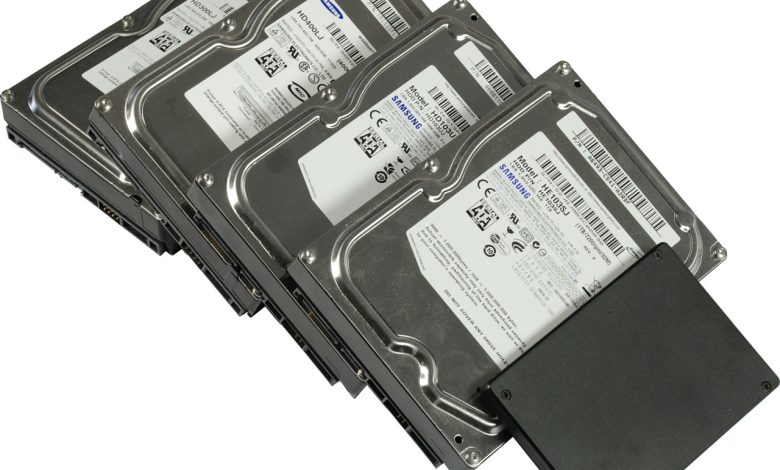
Your old desktop may continue to boot, but when everything feels visibly slower – that’s the time when you start thinking about either upgrading your system or replacing it completely. Before reaching any decision, ask yourself: “whether a simple upgrade could extend its life by another 2 to 3 years?”
For many older PCs, adding RAM or replacing the hard drive with an SSD is the most economical way to raise the performance bar. The real question is: “which upgrade option best compliments the way you use your PC?”
The Bottleneck in Aging Computers
Older machines generally don’t die; they simply get outpaced by contemporary software. For instance, Windows 11 24H2, Chrome with 15 tabs, Zoom, and AI tools such as different LLMs and local chatbots now put far more pressure on hardware than they did five years ago.
There are two major choke points: memory, or RAM, which handles short-term tasks. If you don’t have sufficient memory, your PC constantly swaps data to the slow hard drive, causing freezes and slowdowns. Then there is storage, which determines how quickly the system and applications load. Most PCs from 2015–2018 still shipped with mechanical HDDs.
Statista’s report regarding desktop PC replacement cycle length in the United States from 2022 to 2027, states that around 60% of PCs in use, all around the world, are more than four years old. Replacing them all isn’t a practical option for households or small businesses, making targeted upgrades the most pragmatic first step.
RAM Upgrade
RAM addition allows multitasking and help achieving stability – particularly with AI consistently working in the background.
Below are situations to understand the optimum impact achieved through RAM addition:
- When you add 8GB to 16GB: If you are using Chrome, Teams, and Excel simultaneously, you’ll observe lesser breakdowns. A Corsair Vengeance 16GB DDR4 3200MHz kit is a commonly available, economical option for DDR4 systems.
- When you add 16GB to 32GB: It is effective for photo editing, light video work, or working with local AI models such as Ollama.
- DDR3 vs DDR4: Old PCs use DDR3. A Kingston HyperX 8GB DDR3 1600MHz is still available, but expensive per GB. Upgrade is only viable, if the motherboard supports it
A study by ICT Inc. reveals that, employees lose around 10.5 workdays annually due to similar tech issues, with downtime costs exceeding $5,000 per minute, which practically drags down overall productivity.
In 2026, with AI help indexing files and summarizing emails in real-time, that memory pressure has gone much higher. For PCs in work environments, a $40 RAM stick that stops 10 minutes of per day delay pays for itself in weeks.
- Here is the catch: you need to check your motherboard’s max RAM and slot count first. If you’re already at 16GB and still slow, the problem is not with the RAM.
Storage Upgrade
If you take only a single step, replace the old HDD with an SSD. It will give your system a significant speed boost.
A mechanical hard drive reads data at 80 – 150 MB/s, whereas a basic SATA SSD such as the Samsung 870 EVO 1TB provides around 500 MB/s, and an NVMe SSD like the WD Black SN770 1TB can offer up to 5,150 MB/s. This clearly explains why boot times can drop from two minutes to just 20 seconds.
An SSD upgrade can benefit almost everyone by delivering faster boot times, quicker app launches, smooth AI tools and Windows Search indexing, while working more silently, efficiently, and reliably without replacing other hardware components.
In real-world testing, it is found that HP laptop’s battery life improved from 4 hours 20 minutes to 5 hours 10 minutes after replacing the SSD with HDD. In 2026, this gap is even more relevant because AI features constantly read and write data in the background.
For aging systems, a 500GB or 1TB SATA SSD is considered the sweet spot. They are more cost-effective now and compatible with almost any system manufactured after 2010. If your PC possess an M.2 slot, an NVMe SSD is an even better option.
Decision-Making Criteria for Skipping the Upgrades
Upgrades undoubtedly play a primary role in improving performance, but they are not always the right option. Therefore, it is equally important to understand when to stop spending as it is to understand what to upgrade.
If your PC possess a 10-year-old dual-core CPU, adding 16GB RAM and an SSD will not help it in overcoming its issues. It will still face problems with video calls, advanced applications, and on-device AI features. For such aging systems, upgrading may no longer be a practical option – you might have to do your calculations for replacement.
Hardware compatibility is another key factor to consider before making upgrade-related decisions. Some older systems support only 8GB RAM or SATA II, compromising memory capacity and SSD performance. Before purchasing a WD Black or Crucial P3, ensure your motherboard supports NVMe. If it doesn’t, it is better to skip the upgrade.
Finally, evaluate the cost against the value. If upgrades surpass 40% of the cost of a new entry-level PC, pick replacement as the smarter long-term option. The World Bank’s 2024 Digital Development report emphasizes extending device lifespan for digital inclusion, but Windows 11 and modern AI tools need TPM 2.0 and newer CPUs that many older systems are not compatible with.
How to Decide: RAM vs SSD vs Both
First of all, you need to focus on your real pain points.
If your PC takes ages to start and apps are painfully slow to open → SSD is the solution – a Samsung 870 EVO or Crucial MX500 is the ideal choice for SATA systems.
If your PC freezes when you open multiple programs simultaneously → RAM is the solution – check Task Manager. If “Memory” is exceeding 90%, you need more of it. Corsair and G.Skill still make trustworthy kits.
If both are true → Do both. A $60 SSD + $40 RAM stick can turn a 2016 PC into a 2022 machine for basic work, browsing, and school. It also supports if you’re experimenting with lightweight AI tools locally.
For businesses working with fleets of older desktops, firms like Tech Atlantix usually offer a standardized SSD + 16GB RAM kit, which is affordable than new PCs and keeps systems safe and usable for another 2-3 years.
Final Takeaway
For most legacy systems, upgrading to an SSD is the smartest first move, while adding RAM is best for users who are frequent multitaskers. Both types of upgrades are far more cost-effective than purchasing a new machine and can considerably extend your PC’s lifespan.
In 2026, however, always take AI and operating system requirements into consideration before final decision-making. Upgrade only if your CPU can still smoothly support your everyday workloads.